The editor at a glance
The editor is one page: the header along the top, the views under it, and the sidebar of tools at the right.
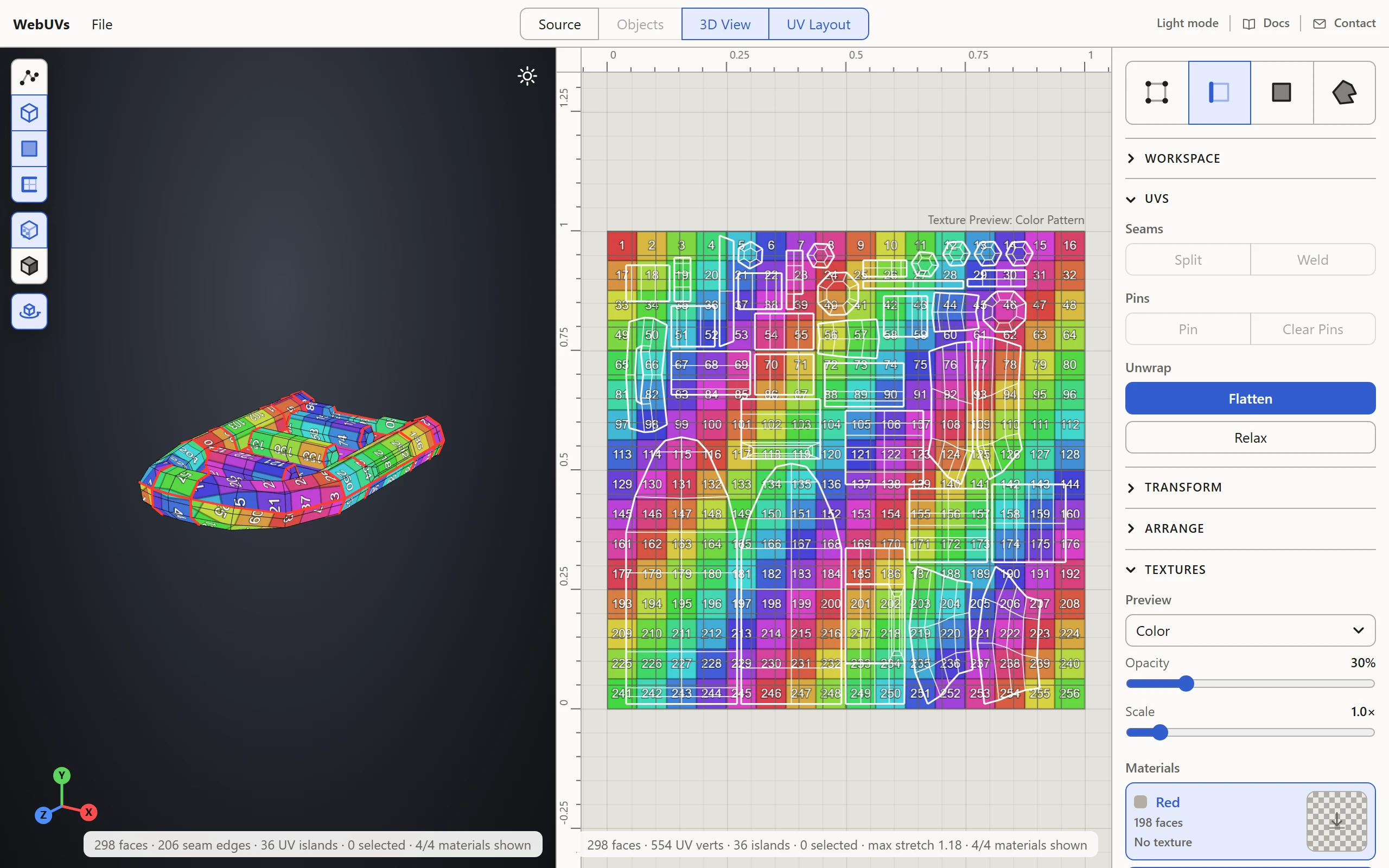
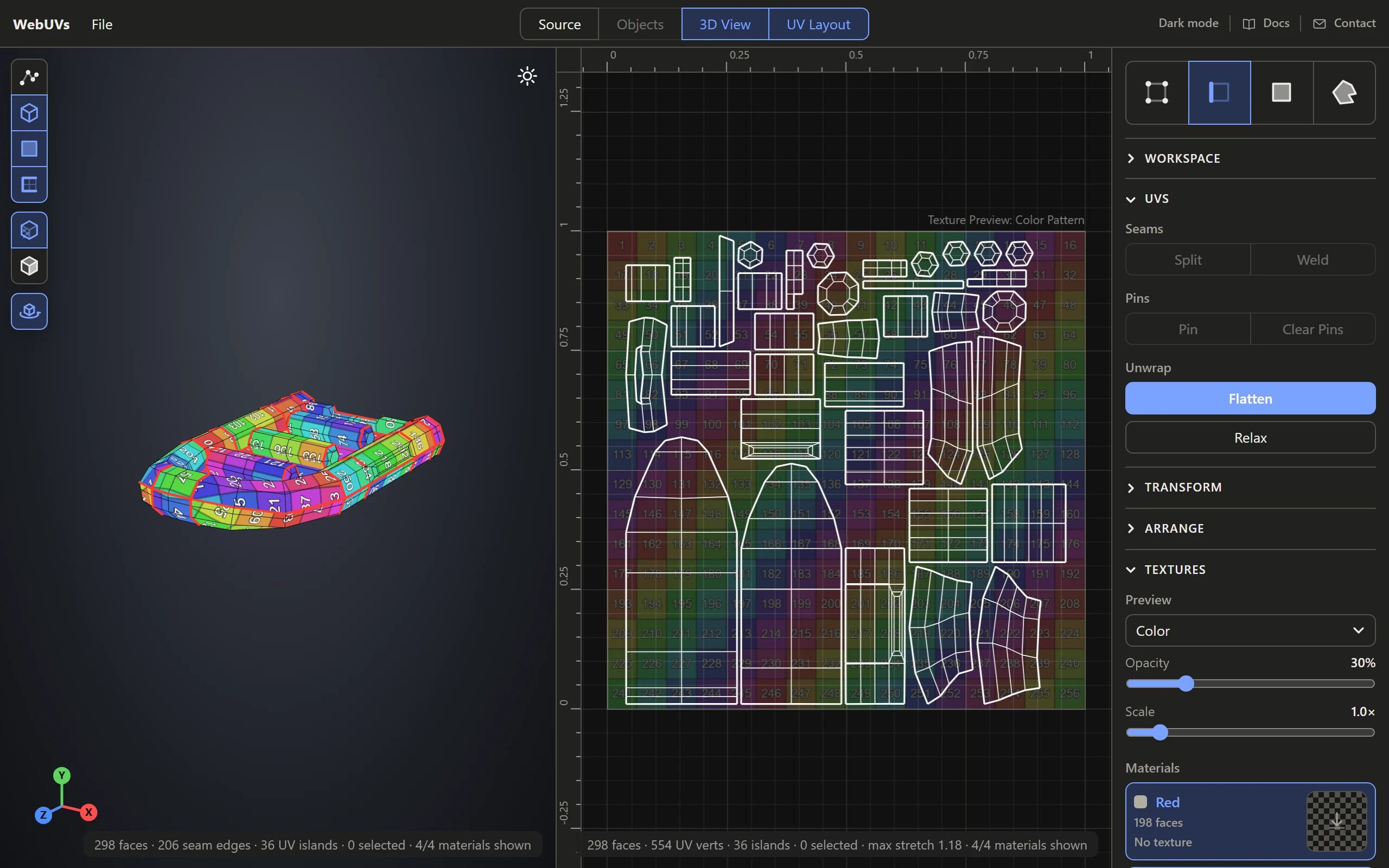
The header


- File opens the File menu: Open, Download As, and the shapes and example models to start from. The version at its foot links to what's new.
- The four buttons in the middle show or hide the views: Source, Objects, 3D View and UV Layout, any mix at once. Objects only turns on for a model of more than one object.
- At the right, Light mode or Dark mode switches the page's colors, Docs opens these pages and Contact sends a message.
The views
- The 3D View shows the model. Turn it, pick parts of it, and see the texture on it.
- The UV Layout shows the UVs in the 0-1 square, where you select, move, scale and turn them.
- Source shows the model as files: as OBJ and MTL text, as it is now, or a .3ds or .i3d file just as it was opened, chunk by chunk.
- Objects lists the model's objects, to show or hide each one.
What you pick in one of the 3D View and UV Layout shows in the other too. Drag the line between two views to give one more room. Workspace, in the sidebar, lays them out side by side or UVs first, with the UV Layout down the right at full height and the others stacked at its left.
The sidebar
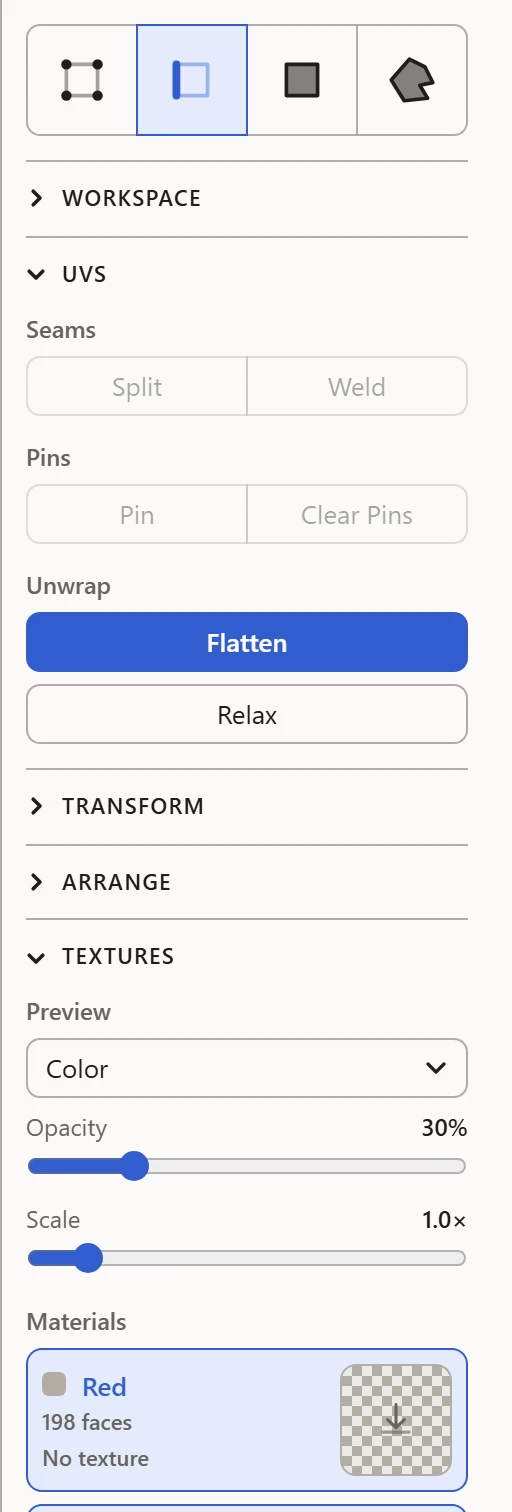
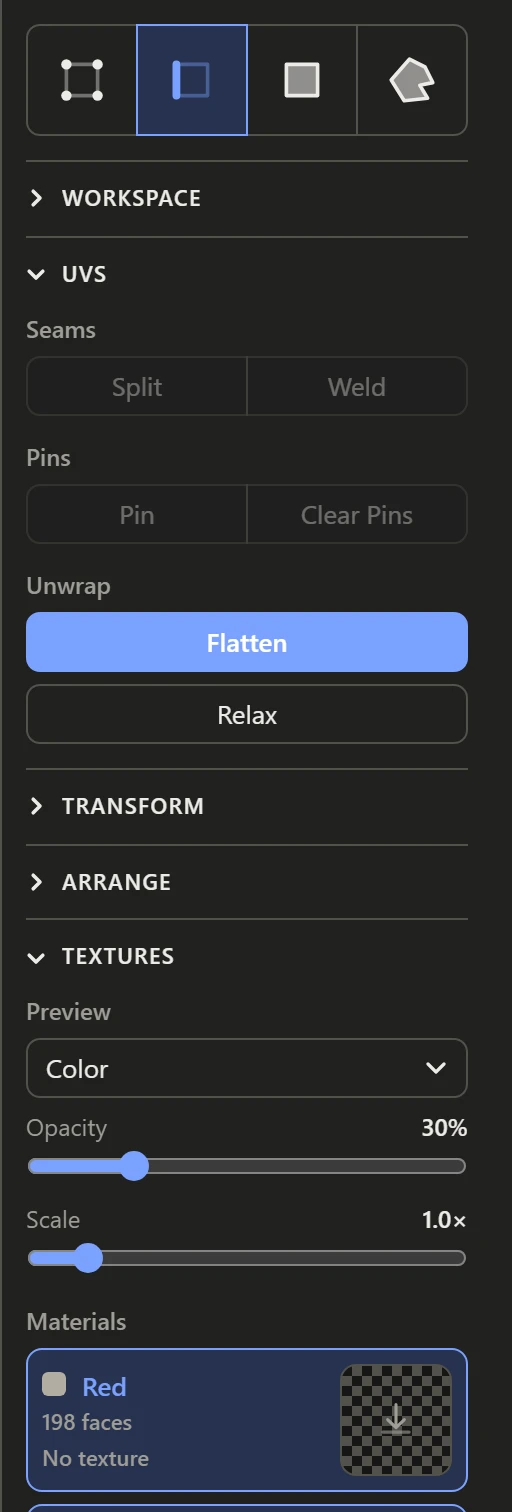
At the top, the four selection modes: Vertices, Edges, Faces and Islands. Under them, the tools in sections:
- Workspace: the layout of the views, box selection, the grid, snapping and which way is up.
- UVs: seams, pins, Flatten and Relax.
- Transform: position, size, rotation, flip, orient, align and distribute.
- Arrange: Pack, Normalize Scale, Fit and island groups.
- Textures: the preview laid over the UVs and the model's materials.
Click a section's name to open or close it.
Along the foot
The 3D View shows its axes at the bottom left, and the UV Layout the key to the Stretch or Texel Density preview. At the bottom right, each view counts what it shows: faces, seams, islands and what's selected.
On a phone
The editor shows one view at a time. The header holds File and Help, with the docs, the contact page and light or dark mode, and at the right a list to pick the view. The sidebar's tools sit under the view.