Seams: Split and Weld
A seam is an edge where the UV layout is cut: the faces either side of it can lie apart in the UV Layout. Seams decide how Flatten cuts a model into islands. The 3D View draws them in red, with Seams on.
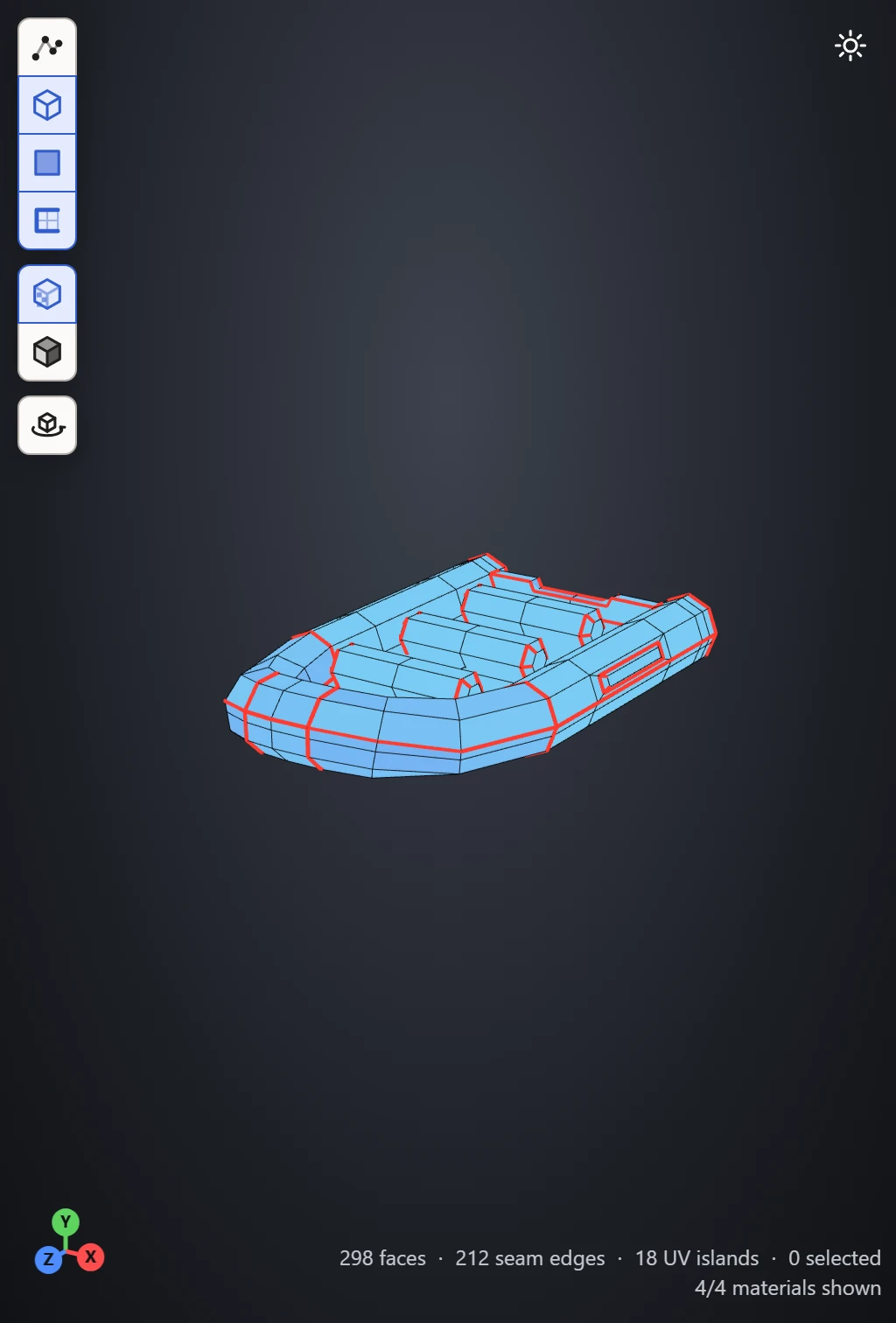
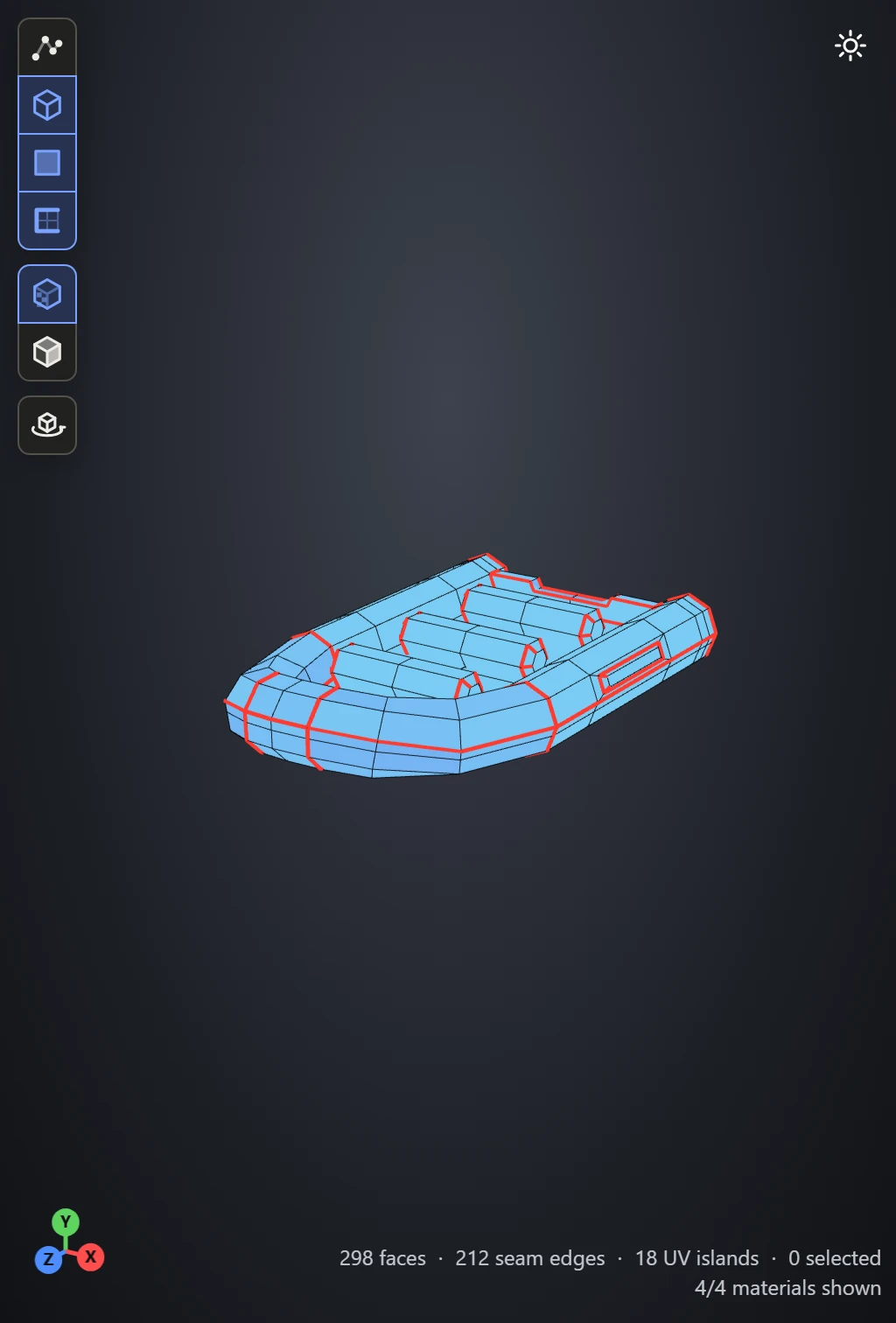
Split
Select where to cut, then click Split, under Seams in the UVs section. It tears the layout open there and marks a seam, so a later Flatten cuts the same way. What's cut depends on the selection mode:
- Edges: the edges selected.
- Vertices: every edge at the vertices selected.
- Faces or Islands: the border of the selection, where a selected face meets one that isn't.
Selecting in the 3D View is usually easiest: double-click an edge to pick its whole loop, then Split.
Weld
Select along a cut and click Weld, or press J, to join the layout back together there: the edges selected, the copies of the vertices selected, or the border of the faces selected, as Split cuts. The smaller side moves over to meet the bigger one, and the seam goes too.
Where to put seams
- Where the model has hard edges anyway, such as a box's corners.
- Out of sight: underneath, at the back, along the inside of an arm.
- Enough to let each piece lie flat: a closed shape needs at least one cut, and a tube needs one along its length.
The Stretch preview shows where a piece still can't lie flat. Generate UVs places seams by itself.