Saving and exporting
Everything you save is made in your browser and downloaded straight to your computer.
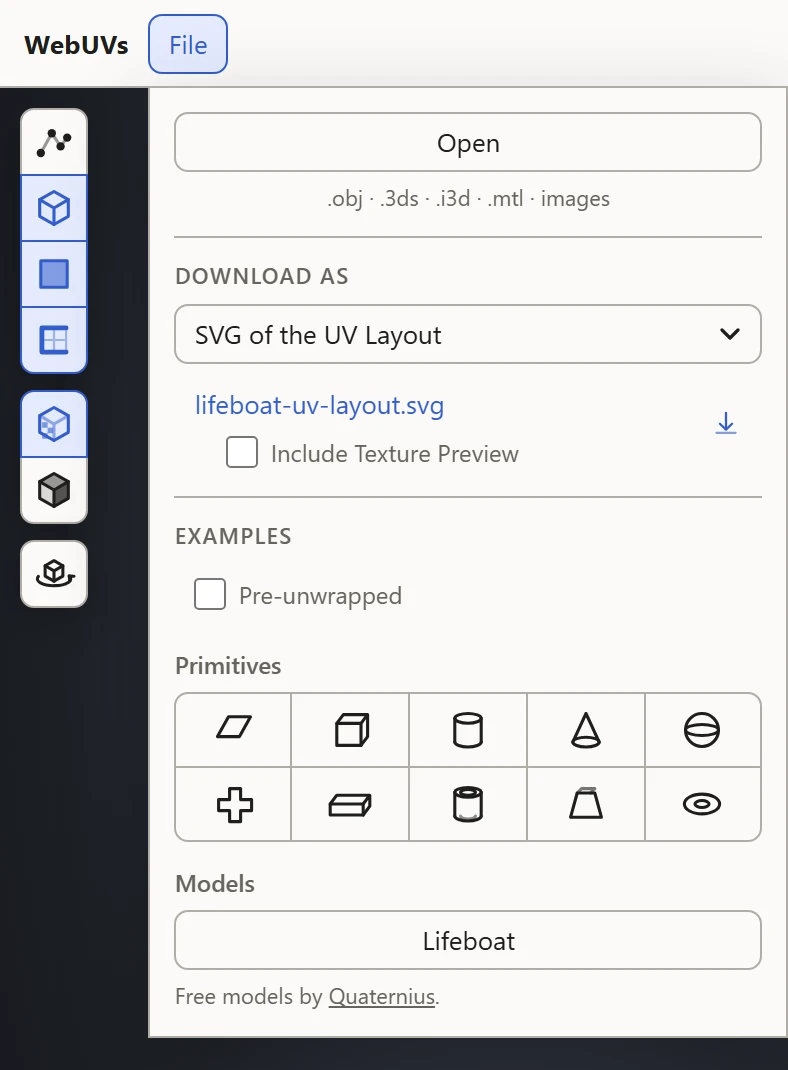
Download As
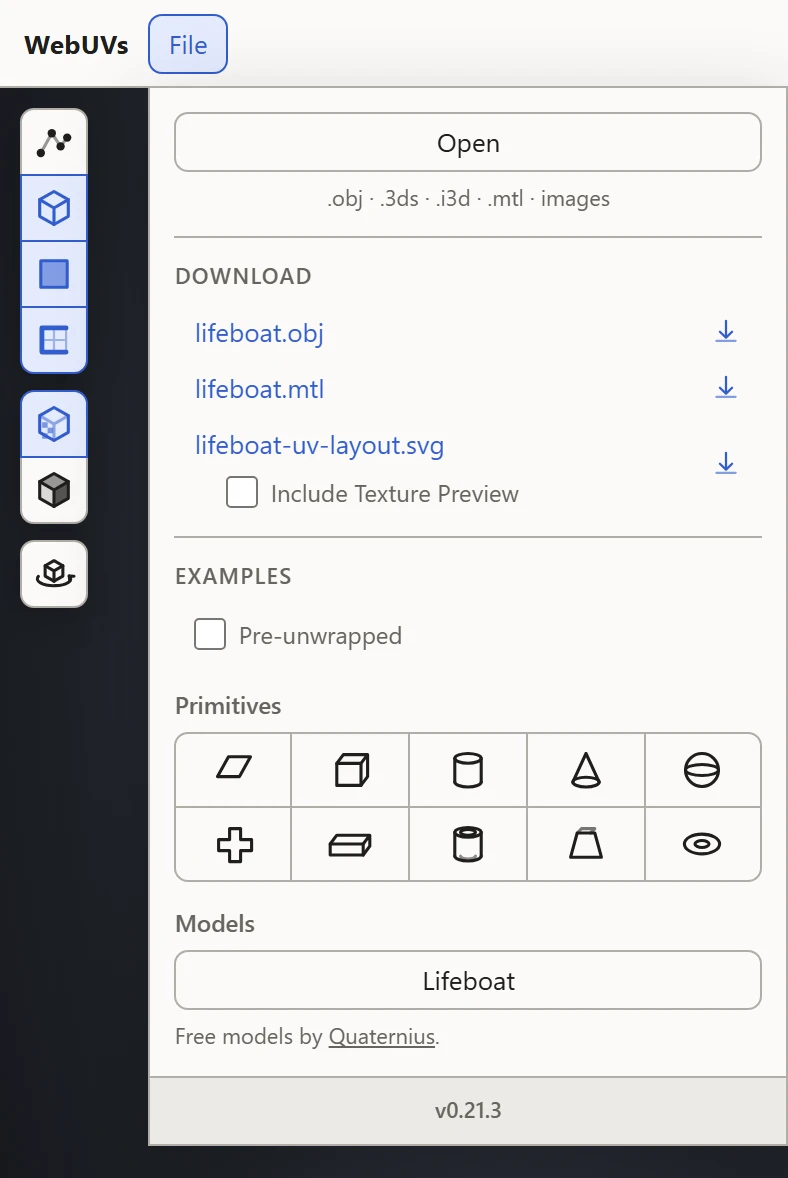
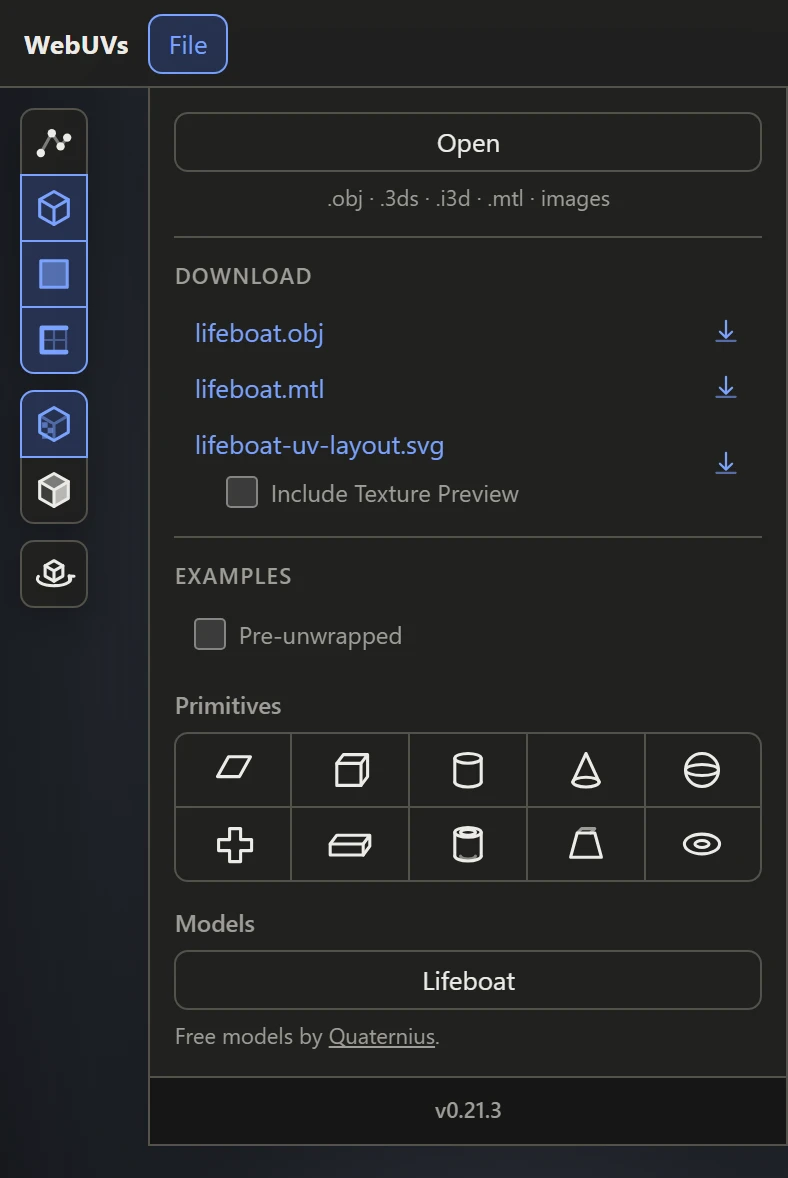
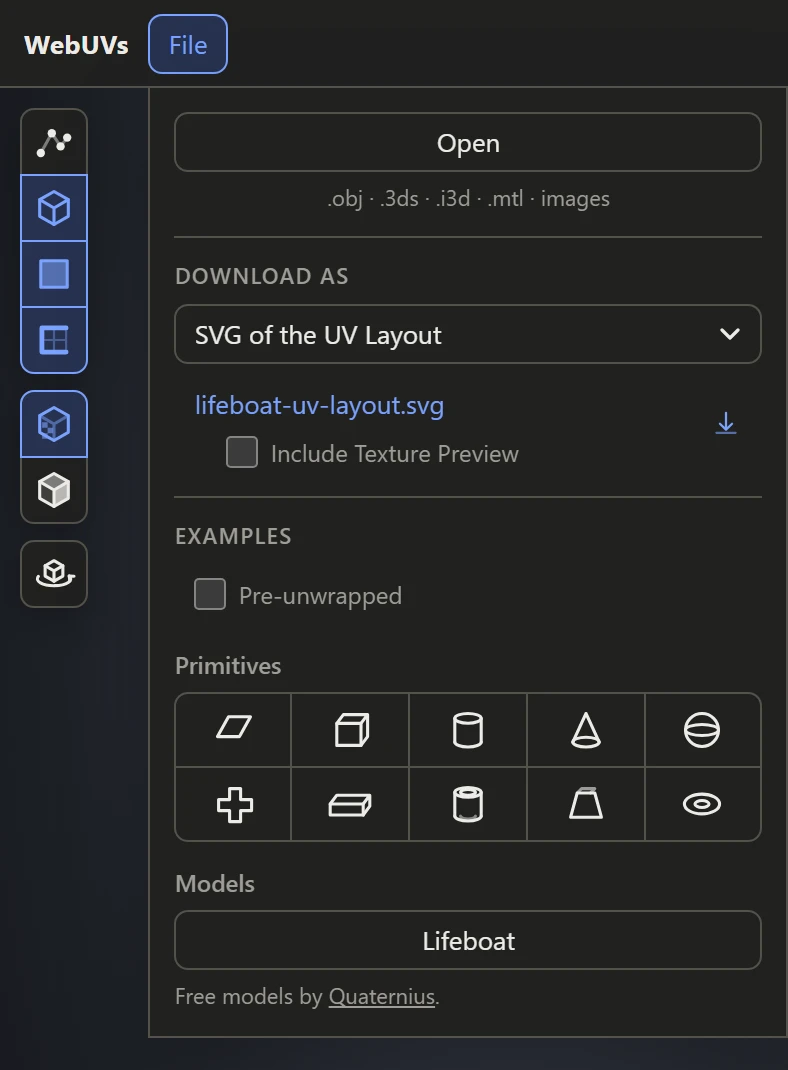
Open File, pick the kind of file under Download As, then click a file's name to download it.
- Its own file, for a model opened from a .3ds or an .i3d: the same file with the UVs as they are now, new seams included. Every other byte stays as it was, so its animation and everything else comes through.
- OBJ and MTL: the model and its UVs as an OBJ file, and its materials as an MTL file beside it. The MTL holds each material's color, its texture's file name and where that lies, and its opacity map.
- 3DS (3D Studio), for a model opened from an OBJ or an .i3d: a new .3ds file with its meshes, their UVs, and each material's color, texture and opacity map.
- SVG of the UV Layout: the layout as lines, to paint a texture over. Tick Include Texture Preview to put what the preview shows under them. See The SVG layout.
So a model opened from one kind of file can be saved as another: an .i3d as a .3ds or an OBJ, an OBJ as a .3ds.
Saved as another kind of file
- Upright: each kind of file has its own way up, Y for an OBJ and Z for a .3ds. The model is turned to stand that way, from the way it stands in the 3D View, so set Orientation first if it shows lying down.
- At the frame showing: an animated model is saved posed as its timeline shows it, whether as OBJ or as a new .3ds.
What a new file leaves out
A .3ds or .i3d file can hold more than OBJ and MTL, or a new .3ds, can. Pick one of those for such a model and the menu lists what the file has that the new one will lose, such as:
- its animation, the objects' hierarchy and pivots, and any bones
- its lights and cameras
- its smoothing groups
- other UV channels, such as for lightmaps
- material settings besides the color, texture and opacity map
- the scene's background, ambient light and fog
To keep all of it, save it back as its own file. An OBJ saved as a .3ds loses only where its MTL file lays its textures.
When saving is refused
Saving into a .3ds or .i3d file can be refused, with a message naming the object in the way:
- An object in a morph: a morph needs its vertices just as they are, and new seams add some. Moving its UVs alone still saves.
- Too many vertices or UVs: a mesh holds at most 65,535 of each, and new seams can push one over. A new .3ds is refused the same way for an object of more than 65,535 vertices or faces.
The textures
No download includes the texture images. The MTL file names them, so keep the images beside the OBJ and MTL.