Fix stretched UVs
A stretched face pulls the texture across it: a check pattern's squares turn to diamonds or long boxes, and writing smears. Here's how to find it and even it out.
Find it
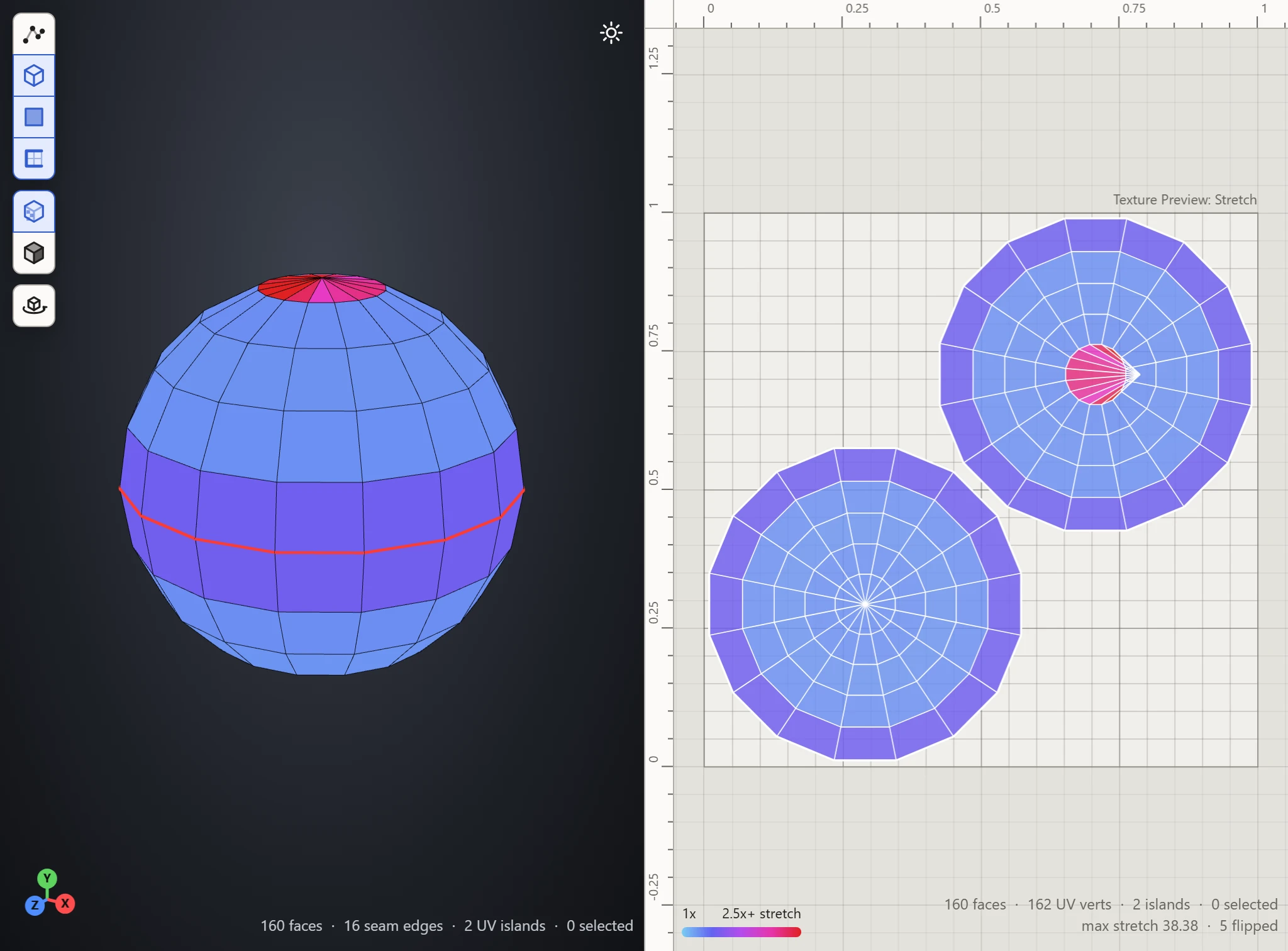
- Pick the Stretch preview. Blue faces are true to their shape; through purple to red, they're stretched. The counts at the bottom right of the UV Layout give the most stretch on any face.
- Turn on Textures in the 3D View to see where the red faces sit on the model.
- Raise Scale to show smaller stretches too.
Even it out
- Relax it: an island pulled out of shape by hand, such as by dragging its vertices, settles back toward its true shape. Turn on Relax, and press and hold the island until the red goes. Pin any vertices that must stay where they are first.
- Cut it: a piece that curves too much can't lie flat however it's laid out, and it's at its best straight after a Flatten. Split a seam into its red part, from its border, and Flatten again.
- Lay it out afresh: Flatten lays every island shown out again from scratch, as true as it can. Hide the parts to keep as they are first.
Check it
Pick the Checker pattern: on the model, its squares should come out square everywhere. Then see that the sizes match, with Texel Density.