Paint a texture over the SVG layout
Paint a texture in your favorite image editor, with the UV layout as a guide on a layer above it.
Save the layout
- Lay out and pack the UVs.
- Pick a preview to paint against, such as Island Numbers, to see which piece is which, or Checker.
- Open File, pick SVG of the UV Layout under Download As, tick Include Texture Preview to put the preview under the lines, and click the file to download it.
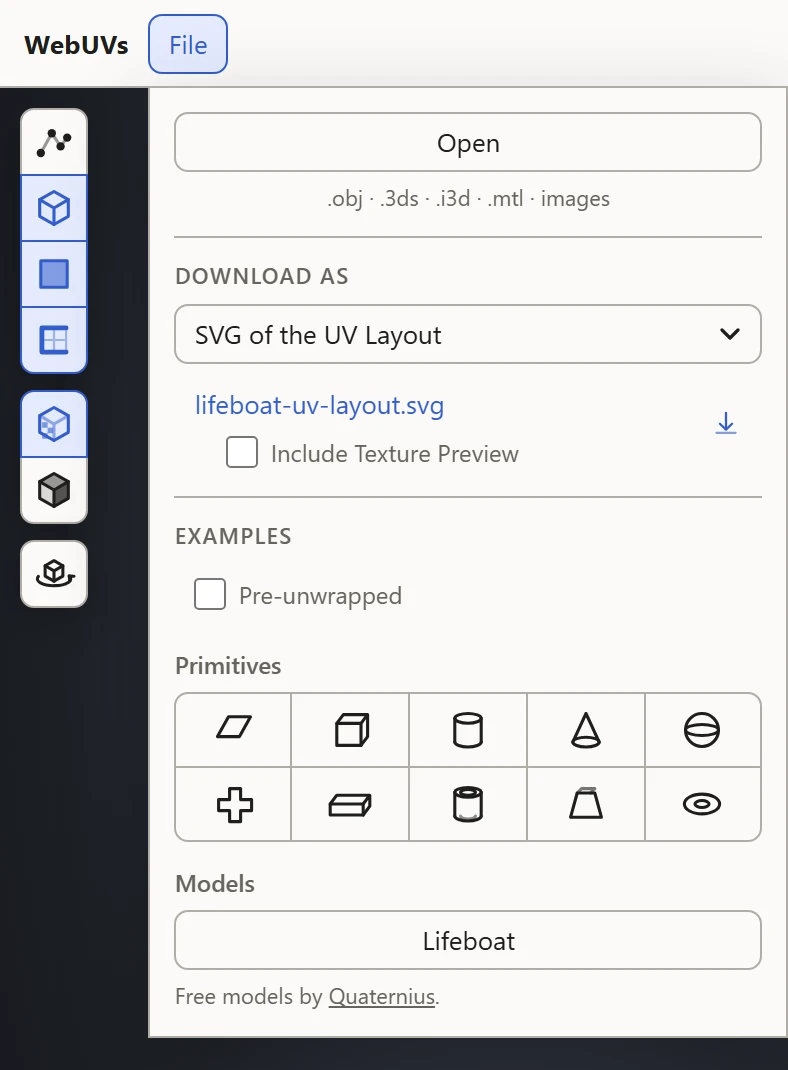
The SVG holds the parts shown: hide the others to save the layout of just one material's texture.
Paint
- Open the SVG in an image editor, such as Photoshop, GIMP, Krita or Photopea, at the texture's size: 1024 by 1024, say.
- Keep the layout on a layer of its own, at the top, and paint on the layers below it.
- Paint a little past each island's border, into the gap round it, so no seam shows a thin line when the texture is shown small.
- Hide the layout's layer, and save the texture as a PNG.
See it on the model
- Back in WebUVs, drop the PNG onto the texture box at the right of the material's row, in the Textures section. It shows on the model at once: a new texture picks the File preview, and turns on Textures in the 3D View. See Materials and textures.
- Paint, save and drop it again until it's right.
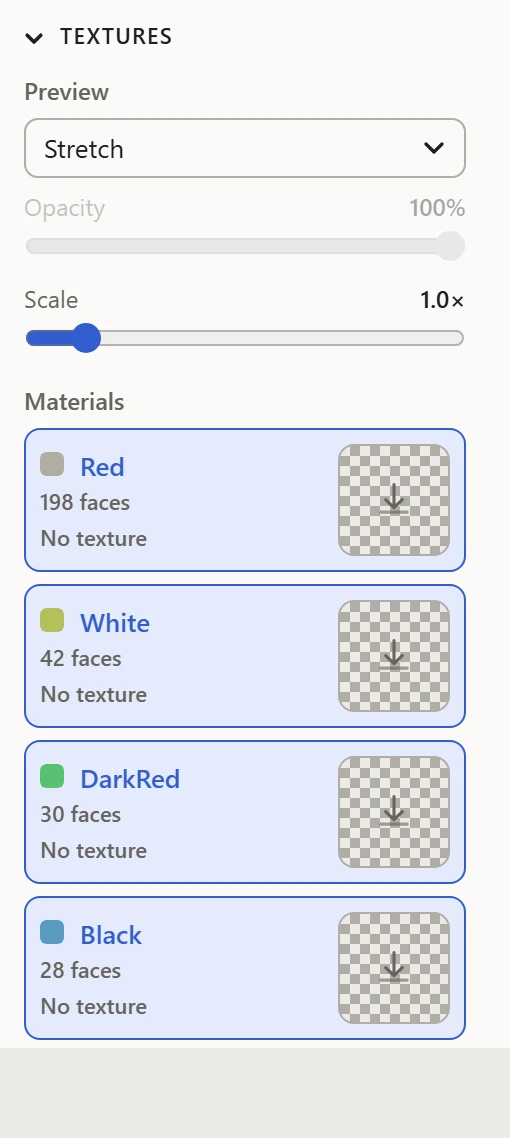
When saving the model as OBJ and MTL, keep the texture beside them, under the name the MTL gives it.