Opening files
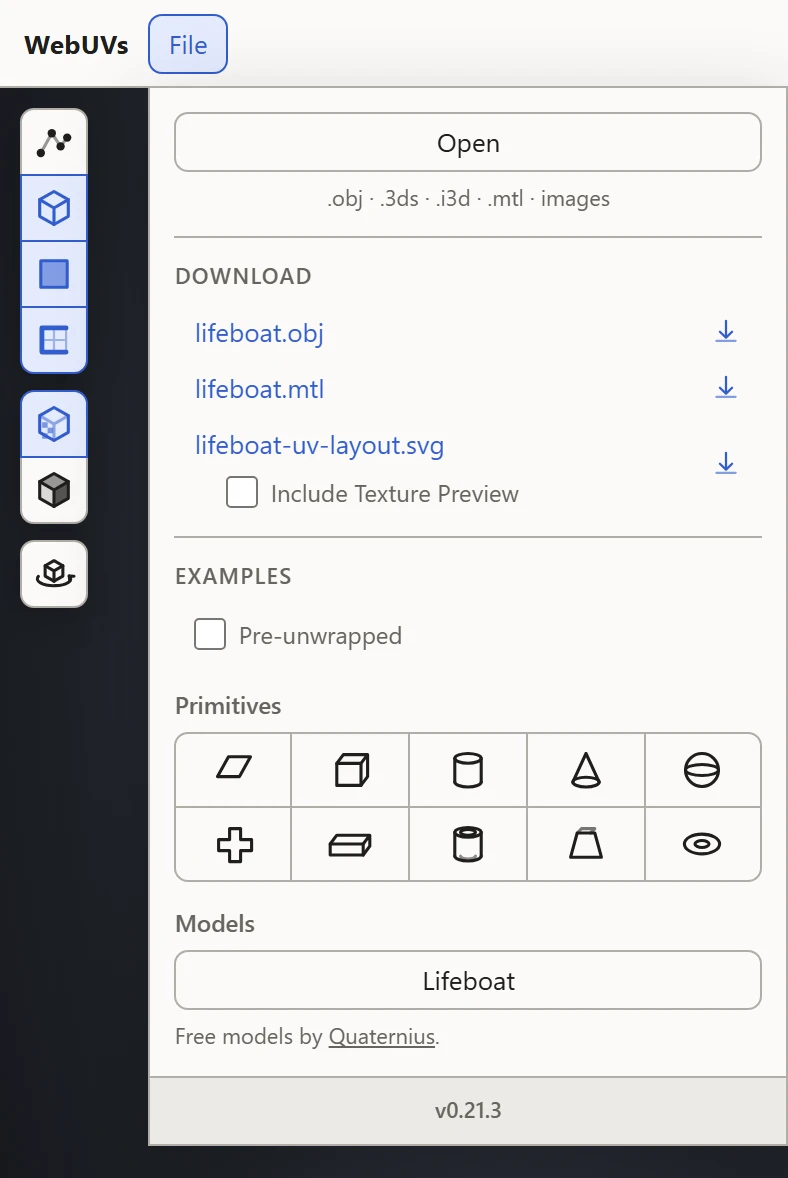
WebUVs opens a model from your computer, along with its materials and textures. Nothing is uploaded: the files are read right in your browser.
What it opens
- OBJ, with its MTL file: the materials' colors, their texture files and where those lie, and any opacity maps. See OBJ and MTL.
- .3ds, 3D Studio's format, with its materials and animation. See 3D Studio .3ds.
- .i3d, built on the .3ds format. See .i3d.
- Images your browser can read, such as PNG and JPEG, as textures. See Images.
Open, or drop
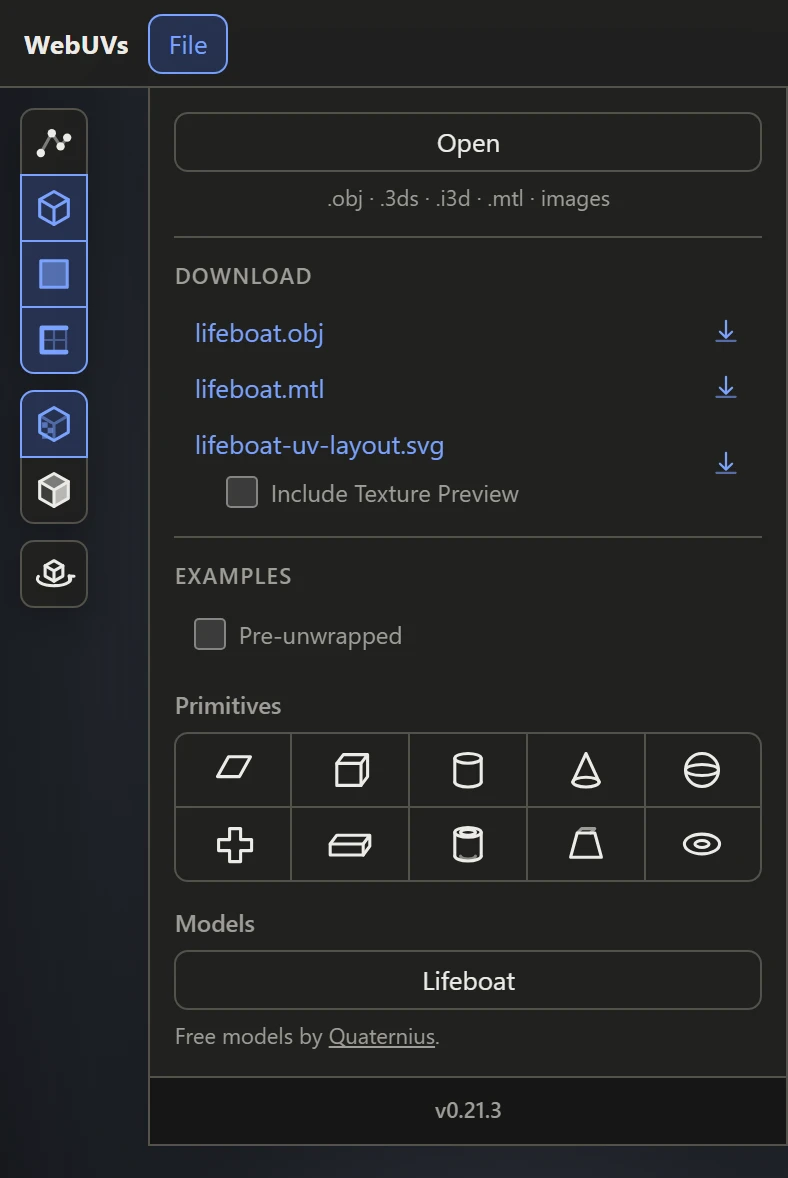
Open File and pick Open, then choose the files: the model, and its MTL and textures along with it if you like. Or drop the files onto the views. A new model replaces the one open, and the work kept in the browser with it.
Textures
An MTL file names each material's texture. An image with that file name goes to that material, whether you open it with the model or later. An image no material names goes to the active material: the one last clicked in the Textures section's list, or the one the selection is on.
To give one material an image, drop it onto the texture box at the right of that material's row, in the Textures section, or click the box to pick one. A material whose texture is named but not given yet shows the name to look for.
Shapes and examples
No model at hand? Under Examples in the File menu, pick one of the shapes or an example model. With Pre-unwrapped ticked, it comes with its UVs already laid out; without, it comes bare, ready to unwrap.
When a file won't open
If a file is damaged, or isn't the format its name says, a message says what went wrong and the model open stays as it was.